
How We Balanced Camera Quality and Bandwidth in Our Video Meetings
How video meeting apps balance camera quality and bandwidth and how we implemented our camera support at Hopp


I'm on X/Twitter at@iparaskev
Contents#
- Introduction
- Background
- How Video Apps Save Bandwidth on Calls with Many Participants
- Using WebRTC Simulcast to Reduce Bandwidth
- How We Built Flexible Camera Sizes for Low Bandwidth Video Meetings
- Summary
Introduction#
Have you ever wondered how popular meeting apps balance camera quality and bandwidth? In this post I will take you through the common patterns and the decisions we made with our webcam support at Hopp, which has a focus on remote pair programming.
Background#
When we initially added camera support for Hopp, we decided to go against the industry standards and make the camera viewing window as simple and small as possible. Specifically:
- The camera window was not resizable but had two size modes.
- We kept the camera window small to save screen space and bandwidth.
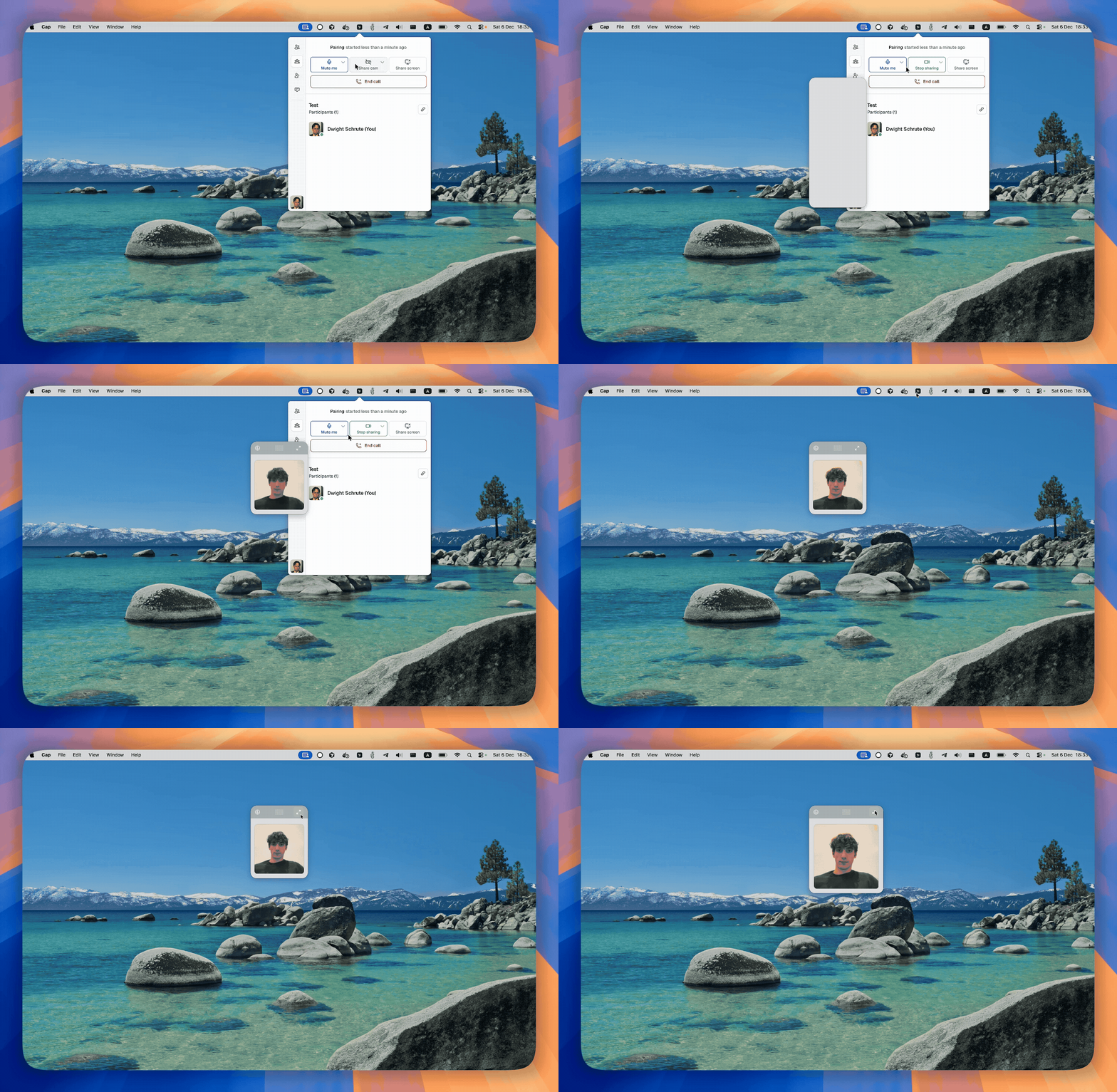
We went with these because we thought that, for remote pair programming, screen sharing is the top priority. We wanted to save screen space and bandwidth so that nothing would interfere with screen sharing.
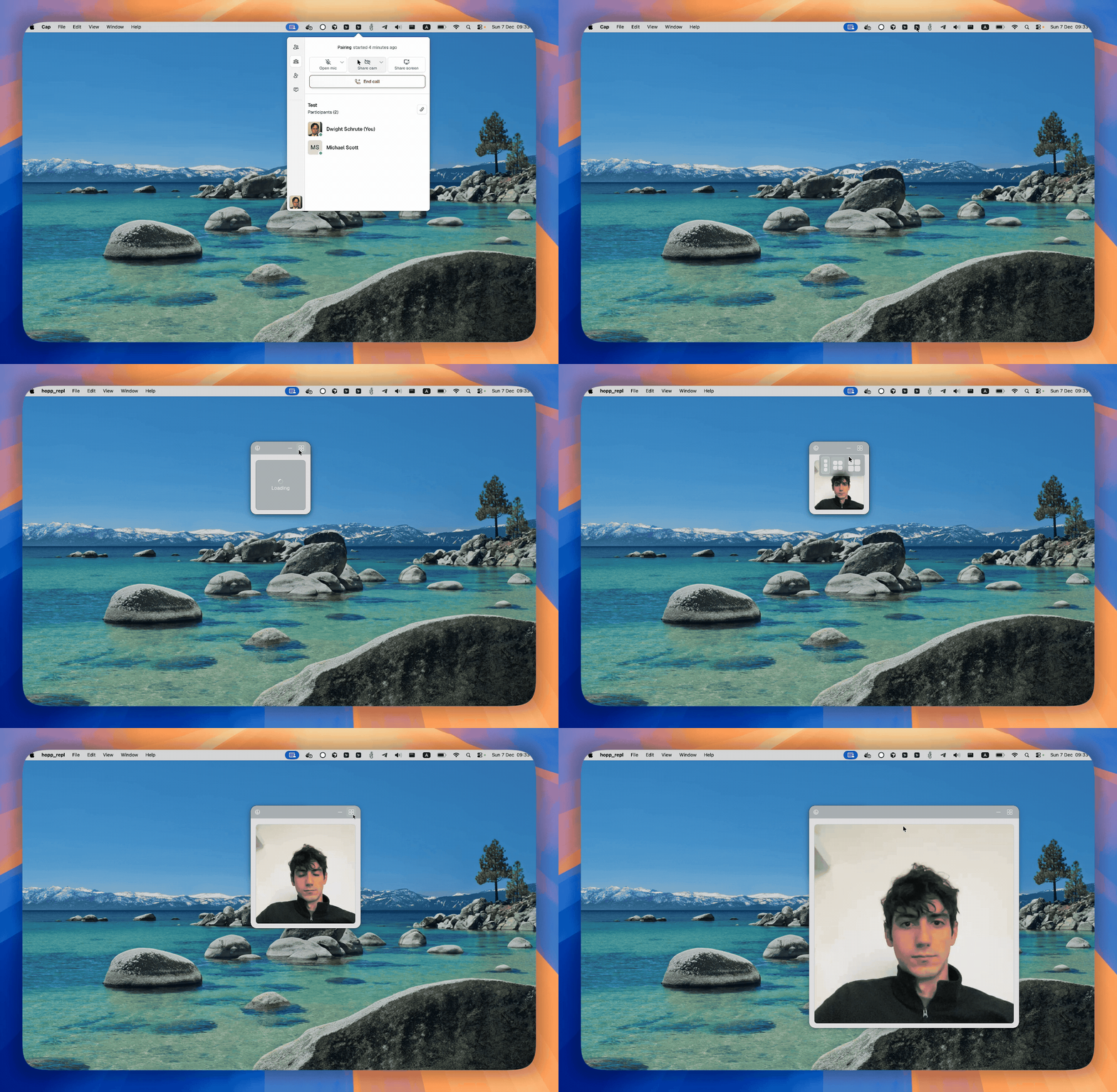
However, we got user feedback that our camera window was too small for some cases, e.g., when they call non-technical folks and they don't need to share their screen.
So, we decided to update it.
How Video Apps Save Bandwidth on Calls with Many Participants#
Bandwidth Requirements#
The bandwidth usage for a video stream depends on two factors:
- The resolution (quality) of the shared video.
- The rate at which the captured frames are sent.
For example, in a common scenario where the rate is 20-30 fps, we have:
- HD res (720p):
1.3 mbps - SD res (360p):
450 kbps - QVGA res (216p):
180 kbps
If meeting apps were using the same resolution for every participant, things could get
out of hand very quickly. For example, in a 10-person call, 13 mbps would be the minimum download bandwidth a participant would need. Multiply this for meeting with 100 participants and you get a whopping 130 mbps.
For this reason, usually video call apps don't treat every participant equally.
Video Bandwidth Savings#
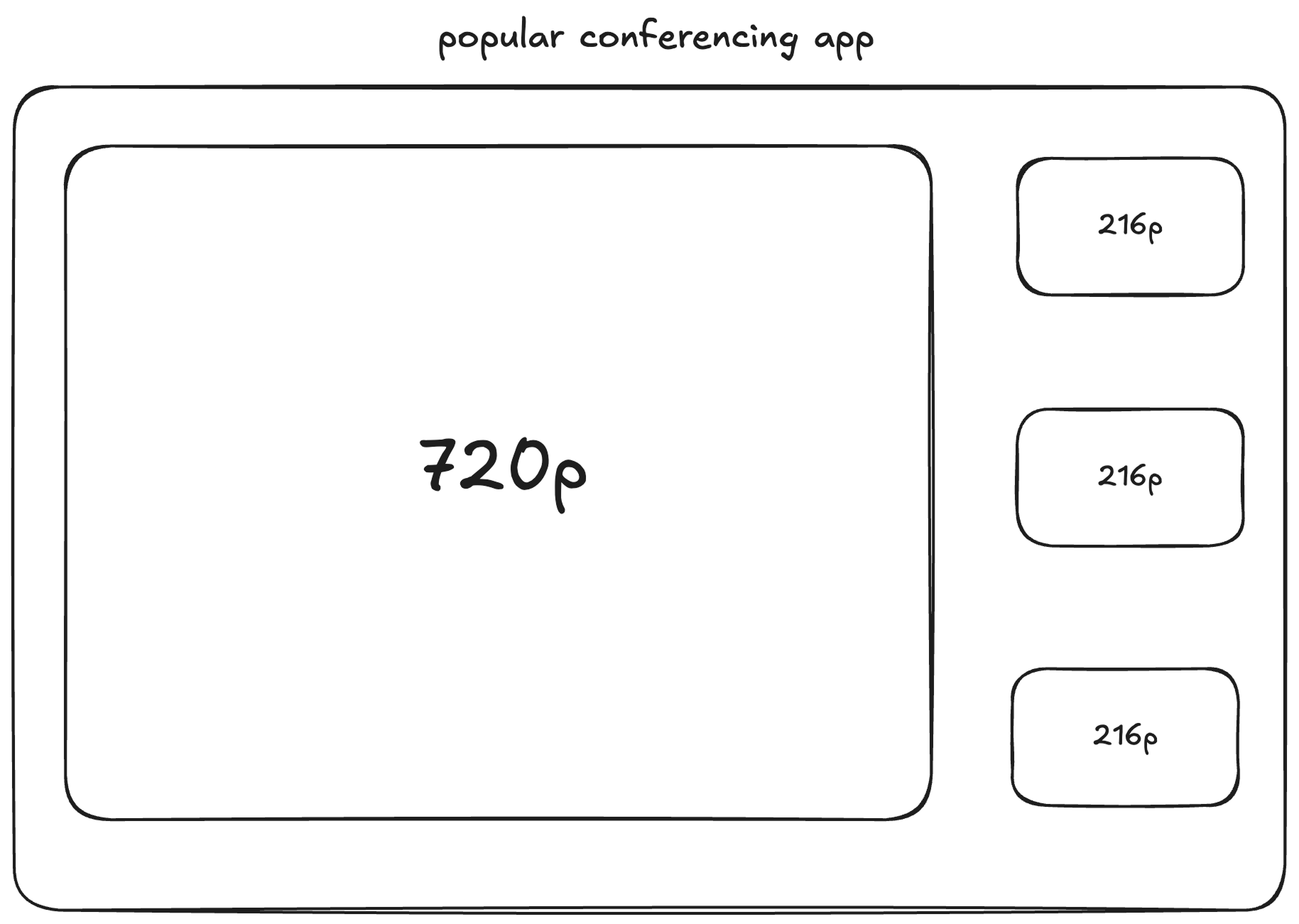
Instead of using the same resolution for each participant, conference apps usually use the highest allowed for the speakers and a lower value for the rest of the participants.
For example, a 10-person call would use 3 mbps, if the speaker was at 720p and everyone else at 216p.
Using WebRTC Simulcast to Reduce Bandwidth#
WebRTC has a feature called simulcast, which makes it very easy for meeting apps to do this.
Simulcast essentially allows each participant to publish the same stream multiple times in different resolutions, which means more upload bandwidth for the publisher, but the subscribers have to option to use the resolution they want.
Simulcast is designed to work with an SFU. The SFU gets all the streams from the publisher and decides which one to send to each subscriber.
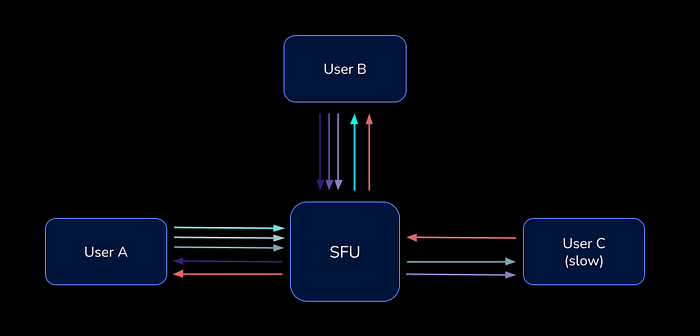
You can read more about simulcast in the LiveKit's blog, from where the above figure was taken.
How We Built Flexible Camera Sizes for Low Bandwidth Video Meetings#
For our implementation, we decided not to follow the "speaker pattern" (where only active speakers get high-resolution video), and instead we decided to use the same resolution for every participant.
The reason we made this decision is obvious if you consider the different types of video calls.
- Conference/Webinar
- Many listeners, one or two main speakers.
- Small Group Chats
- Usually up to 3-4 participants, everyone chats equally, like a pair/mob programming session.
- Large Team Meetings
- Usually from 5 to 20 participants, rotating speakers.
Hopp is built for remote pair programming, therefore, most of the calls made with it belong to the second type (small group chats). Even if the maximum resolution was used in a small group chat, the bandwidth required would be around 5 mbps.
Camera Participants Used#
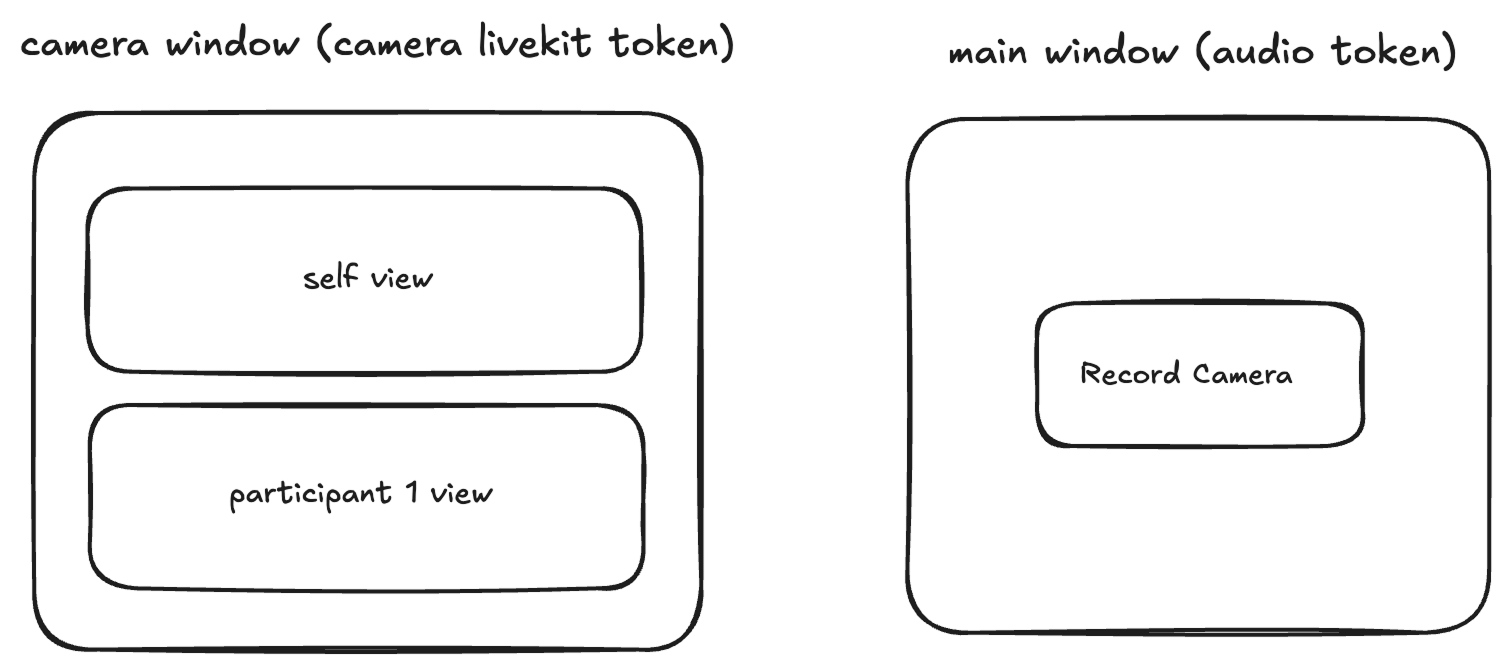
At Hopp, we are recording the camera from one window, and we are viewing all the video streams from a different one. To keep things as simple as possible, we decided to treat each window as a separate LiveKit participant.
First Version Prioritizing Low Bandwidth for Screen Sharing#
In our initial implementation, we were sharing just a 216p stream for the camera to save
screen space and bandwidth.
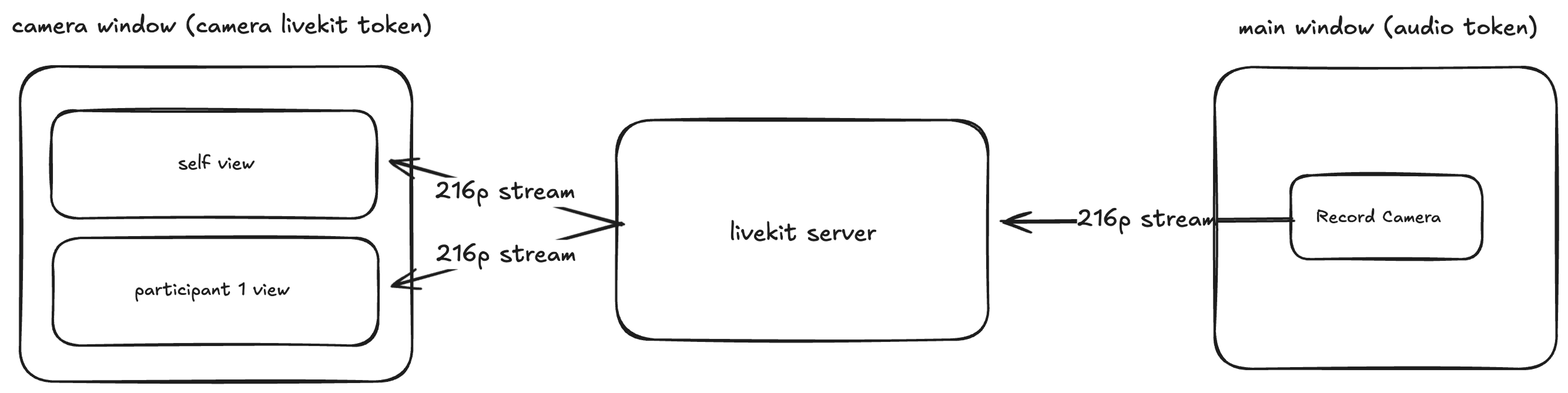
The implementation can be summarized in:
- Participants
AandBconnect to the room. - Participant
Astarts sharing their camera.- The viewing window opens automatically for both participants with only one stream.
- Participant
Bstarts sharing their camera.- The viewing windows in both participants contain both participants' streams.
Second Version Flexible Modes for Different Meeting Styles#

In our improved implementation, we decided to change the viewing window to have 3 different modes, where each one will be used for a different purpose.
- The smallest one when pairing, when you usually don't want distractions but still want to see your teammates.
- The medium one, where it can be either a group chat or pairing, but you want a bigger view of your teammates.
- The large one, which could be used for having pure video calls or short pairing sessions.
Measuring Bandwidth With WebRTC#
In order to have a better understanding of the bandwidth usage, we added two components to our code base.
- One for logging the outbound video bandwidth for a participant.
- One for logging the inbound video bandwidth for a participant.
The LiveKit SDK makes it easy to get the stats we need. For example, for outbound bandwidth, we did the following:
const cameraPublication = localParticipant
  .getTrackPublications()
  .find((pub) => pub.source === Track.Source.Camera);

if (!cameraPublication?.track) {
  return;
}

// Cast to LocalVideoTrack to access getSenderStats
const videoTrack = cameraPublication.track as LocalVideoTrack;

if (!videoTrack.getSenderStats) {
  console.warn("getSenderStats not available on track");
  return;
}

// Get video sender stats using LiveKit's API
const stats = await videoTrack.getSenderStats();
and for the inbound
for (const participant of room.remoteParticipants.values()) {
  for (const publication of participant.getTrackPublications()) {
    if (publication.source === Track.Source.Camera && publication.track) {
      const track = publication.track as RemoteVideoTrack;
      if (track.getReceiverStats) {
        promises.push(
          track
            .getReceiverStats()
            .then((stats) => {
              if (!stats) return;
              totalBytesReceived += stats.bytesReceived || 0;
              totalPacketsLost += stats.packetsLost || 0;
            })
            .catch((e) => {
              console.warn("Failed to get stats for track", track.sid, e);
            }),
        );
      }
    }
  }
}
While testing on my M1 Air, 0.16 mbps of bandwidth was used per participant. Upload and download
bandwidth was the same because simulcast wasn't used.
[Log] [Camera Bandwidth] 163.45 Kbps (0.16 Mbps)
[Log] [Camera Bandwidth] 163.16 Kbps (0.16 Mbps)
[Log] [Camera Bandwidth] 159.62 Kbps (0.16 Mbps)
[Log] [Camera Bandwidth] 164.04 Kbps (0.16 Mbps)
[Log] [Camera Bandwidth] 163.69 Kbps (0.16 Mbps)
Enabling Simulcast#
We enabled simulcast so we could choose the resolution in the viewing window depending on the mode used. We set the following layers.
- One at
720p. - One at
360p. - One at
216p.
localParticipant.setCameraEnabled(
  callTokens?.hasCameraEnabled,
  {
    resolution: VideoPresets.h720.resolution,
  },
  {
    videoCodec: "h264",
    simulcast: true,
    videoEncoding: {
      maxBitrate: 1_300_000,
    },
    videoSimulcastLayers: [VideoPresets.h360, VideoPresets.h216],
  },
);
On my M1 Air, the upload bandwidth increased to
[Log] [Camera Bandwidth] 1770.52 Kbps (1.73 Mbps)
[Log] [Camera Bandwidth] 1792.05 Kbps (1.75 Mbps)
[Log] [Camera Bandwidth] 1745.33 Kbps (1.70 Mbps)
[Log] [Camera Bandwidth] 1806.59 Kbps (1.76 Mbps)
[Log] [Camera Bandwidth] 1759.25 Kbps (1.72 Mbps)
which is expected as now we are 3 streams and with better quality.
Different Layer Per Mode#
Inbound bandwidth usage now varies depending on the mode. In the logs, the reported usage is for two participants,
so you can divide the value by two to get the per-participant usage. Except for the last mode. In that case, just subtract 400 kbps
from the total, because the self-view uses 360p to help save bandwidth, so one stream is at 720p and one at 360p.
- Small mode
[Log] [Inbound Camera Bandwidth] 335.82 Kbps (0.33 Mbps)
[Log] [Inbound Camera Bandwidth] 330.44 Kbps (0.32 Mbps)
[Log] [Inbound Camera Bandwidth] 334.14 Kbps (0.33 Mbps)
[Log] [Inbound Camera Bandwidth] 330.80 Kbps (0.32 Mbps)
[Log] [Inbound Camera Bandwidth] 335.68 Kbps (0.33 Mbps)
- Medium mode
[Log] [Inbound Camera Bandwidth] 827.95 Kbps (0.81 Mbps)
[Log] [Inbound Camera Bandwidth] 839.32 Kbps (0.82 Mbps)
[Log] [Inbound Camera Bandwidth] 830.66 Kbps (0.81 Mbps)
[Log] [Inbound Camera Bandwidth] 832.34 Kbps (0.81 Mbps)
[Log] [Inbound Camera Bandwidth] 846.62 Kbps (0.83 Mbps)
- Large mode
[Log] [Inbound Camera Bandwidth] 1608.82 Kbps (1.57 Mbps)
[Log] [Inbound Camera Bandwidth] 1590.44 Kbps (1.55 Mbps)
[Log] [Inbound Camera Bandwidth] 1620.81 Kbps (1.58 Mbps)
[Log] [Inbound Camera Bandwidth] 1580.41 Kbps (1.54 Mbps)
[Log] [Inbound Camera Bandwidth] 1582.08 Kbps (1.55 Mbps)
A bonus benefit of using simulcast with LiveKit's SFU is that if a subscriber has slow connection the SFU will choose a lower layer to use which will leave the rest of the participants unaffected.
Hiding The Self-View#
At Hopp we allow to hide the self-view so you don't get distracted by your face.

in order to save same bandwidth when the self-view is hidden we set the resolution to the lowest layer.
Note: In order to save even more bandwidth we tried to not subscribe to the self-view stream but instead to capture again from the same device and preview the local stream. Unfortunately, this couldn't work and either one of the capturing windows was stopping to capture. If anyone knows a clever way to do this feel free to reach out or open a PR.
Summary#
In this post we covered:
- How video apps like Zoom manage bandwidth and dynamically adjust a participants resolution.
- A real use case of WebRTC's simulcast.
- Why the "speaker pattern" is not always the best choice.
A future improvement would be to automatically limit the large mode (720p) to a maximum of 4 participants. When more than 4 people share their cameras, the app would fall back to medium mode (360p) to keep bandwidth usage reasonable, feel free to tackle #196.
As always every word was manually typed like a caveman.
If you have any questions or suggestions for future posts feel free to reach out at X/twitter or email me directly at iason at gethopp dot app.
If you liked what we are doing consider giving us a star on GitHub and signing up to try Hopp for your next call.